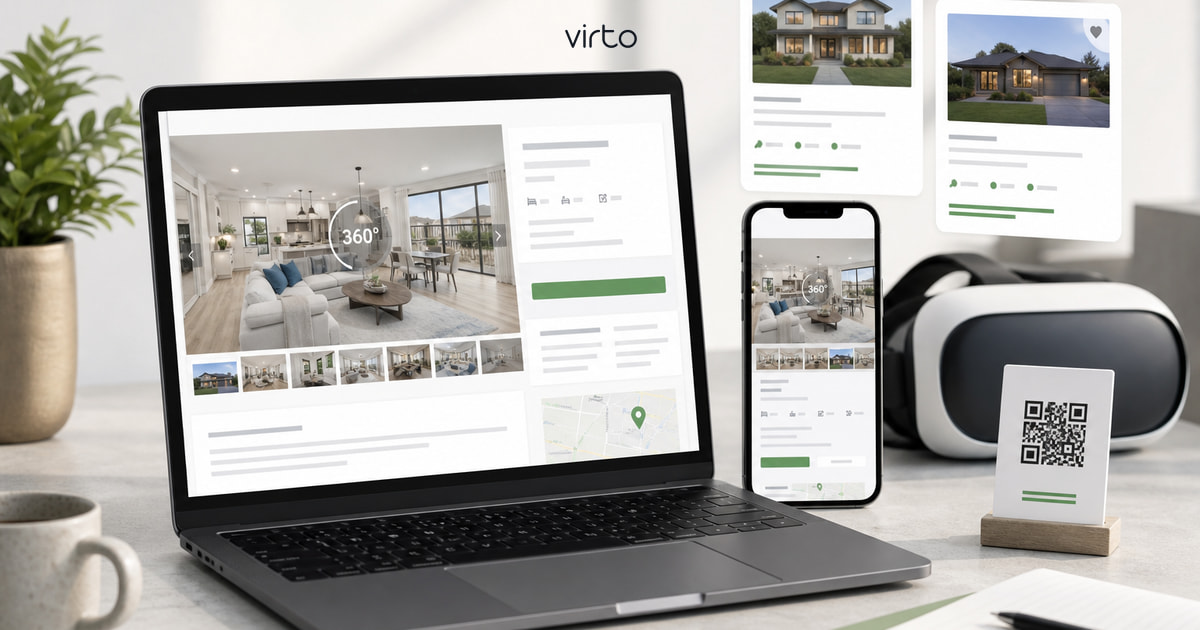
How to Add a Virtual Tour to Your Real Estate Listing (MLS, Zillow & Website)
The tour is done. Now put it where buyers actually look — MLS remarks, Zillow media, your brokerage page, and the flyer QR code.
Agents call us after the hard part is already done. They shot the listing, built the walkthrough, published on Virto 360 — and then stare at the MLS form wondering where the link goes. Fair question. Every board labels the field differently, Zillow has its own media tab, and the brokerage WordPress site wants an iframe. Same tour, three different paste targets.
This guide is only about distribution. If you still need to shoot or upload, start with our 360° shooting checklist or the step-by-step create guide — then come back here with your share URL ready. If you are still deciding whether the listing even needs a walkthrough, photos vs video vs a 360° tour is the shorter argument.
Step 1 — Publish and grab the share link
In Virto 360, open your finished tour and hit Finish so it gets a public URL. Open Share and copy the link — it looks like virto360.com/share/ followed by a short ID. That single URL works everywhere: MLS, text messages, Instagram bio, email signatures. Viewers open it in a browser; no app, no login on their side.
Quick sanity check before you paste it anywhere: open the link on your phone in an incognito tab. Walk through every hotspot. If a door is missing, fix it now — you do not want buyers discovering dead ends from a Zillow notification.
Step 2 — MLS: where the link actually goes
Most MLS systems have a dedicated virtual tour, media URL, or 3D tour field in the listing input form. Paste your Virto share link there. Syndication to Realtor.com, Redfin, and partner sites often pulls from that field automatically within a few hours.
- If your board has a "Virtual Tour" URL box — use it first; that is what syndication reads
- No dedicated field? Add "360° virtual tour: [link]" as the first line of public remarks
- Some boards cap remark length — shorten to "360° tour ↗ [link]" if needed
- Co-listings: agree who maintains the tour link if the listing expires and relists with a new MLS number
Board rules change. If photography vendors must be credited, add "Tour by [your name / company]" next to the link. Compliance beats clever formatting.
Step 3 — Zillow and portal-specific media
Zillow pulls listing data from MLS in many markets, but do not assume the tour arrived. Log into Zillow Agent Hub or Rental Manager, open the property, and check Media → Virtual Tour or 3D Home. If empty, paste the same Virto link manually.
- Zillow for-sale listings: virtual tour URL in media section or agent-editable fields
- Rentals: add link in description and in any dedicated tour URL slot
- Realtor.com and Redfin: usually follow MLS — verify after 24 hours
- Facebook Marketplace / Craigslist: paste link in body text; preview thumbnail comes from your opening scene
Portals change UI often. The constant is the share URL — keep it in a snippet tool (Text Expander, iOS Shortcuts, your CRM template) so every new listing gets the same treatment in under a minute.
Step 4 — Embed on your brokerage or property website
A link in MLS is good. An embed on your own listing page is better — the buyer stays on your brand, not a portal. In Virto 360 Share → Embed, copy the iframe code and paste it into your property page, usually above the contact form or gallery.
- WordPress: Custom HTML block or Elementor HTML widget
- Squarespace / Wix / Webflow: Embed or Code block, paste iframe
- Team sites (Luxury Presence, Real Geeks): look for "virtual tour" or custom HTML module
- Set iframe width to 100% so mobile fills the screen — our embed panel generates responsive code by default
Match embed theme to your site: light theme on white pages, dark on luxury templates. Optional logo overlay replaces Virto branding on paid plans — useful when the listing page is client-facing.
Step 5 — QR codes for signs, flyers, and open house
Download the QR from Share — same tour, scannable from a yard sign or flyer. At open house, a laminated QR on the kitchen counter beats telling visitors to "search the address on Zillow." They scan, walk the empty rooms on their phone while you answer questions in person.
- Sign rider: "360° Tour — scan here" with QR at eye level
- Flyer back panel: QR + short URL for older phones
- Email blast to your buyer list: link + "view on desktop or phone"
- Text to interested buyers: one link, no attachment size limits
One tour, keep it updated
The share URL stays the same when you republish after edits. Fixed a hotspot? Tweaked the opening view? Republish in Virto 360 — MLS and Zillow links keep working. You only re-paste if you delete the tour and create a brand-new public ID.
Staging changes are the usual reason to update: new furniture, lights on, seasonal exterior. Swap the panorama in the editor, republish, and every channel picks up the new scene without a portal re-entry marathon.
Mistakes we see on listing distribution
- Pasting a private or draft link — tour must be published and public
- Link buried at the bottom of remarks where mobile MLS apps truncate
- Different URLs on MLS vs Zillow vs flyer — one canonical share link everywhere
- Never testing syndication — check Realtor.com 24h after go-live
- Embedding a broken iframe on a https site — Virto embeds are https-ready; mixed content is rare but worth a quick dev check
Start with your active listing
Pick the listing that goes live this week. Publish the tour, paste the link into MLS, verify Zillow tomorrow, embed on your site before the open house. If the tour is not built yet, our create guide gets you from upload to share link in under an hour.
Where to go next
For listing walkthroughs, see virtual tour software for real estate.
Frequently asked questions
Does MLS accept any virtual tour URL?
Most boards accept standard https links. Virto 360 share URLs are regular web addresses — paste into virtual tour or media URL fields. If your board only allows specific vendors, check local rules; many boards opened up to any hosted 360° link.
Will Zillow automatically show my MLS virtual tour?
Often yes, after syndication sync — but not always. Log into Zillow and confirm the tour appears. If not, paste the Virto link manually in the media section.
Can I use the same tour link after a price change or relist?
If the MLS listing ID stays the same, keep the same link. If you cancel and create a new listing with a new ID, the old link still works as long as the tour is published — reuse it or build a fresh tour for the new address.
Embed or link — which is better for SEO?
Embed on your brokerage site keeps traffic on your domain. MLS and Zillow links drive portal SEO. Use both: embed for your site, share URL for syndication.