Embed Virtual Tours on Your Website
Add a Virto 360 walkthrough to any site with a simple iframe code
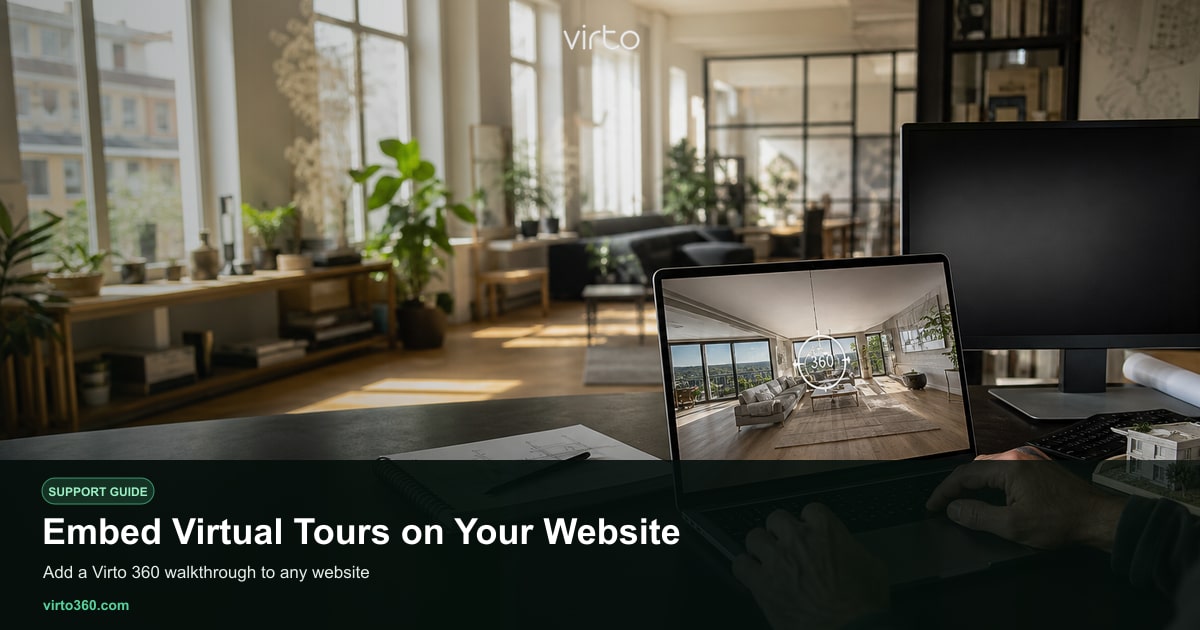
Embedding lets visitors explore your 360° tour without leaving your website. Virto 360 generates a standard iframe embed code for every published tour — copy it from /share and paste into your page builder or HTML. The embed is responsive, works on mobile, and stays completely free. There is no viewer limit, no watermark upgrade, and no API key required for basic embedding.
Publish before you embed
Only published tours have a stable embed URL. Finish editing in /filters — hotspots connected, filters applied, scenes in order — then open /share and click Publish (or Update if you already published once). Publishing creates a public tour ID and locks in the version viewers see until you publish again. Unpublished drafts cannot be embedded on external sites because the iframe needs a live public endpoint.
- Complete your tour in /filters.
- Go to /share and publish the tour.
- Find the Embed section on the share page.
- Click Copy embed code — a ready-made iframe snippet is on your clipboard.
- Paste into your website where you want the tour to appear.
Paste the iframe code
The embed code looks like a standard HTML iframe pointing at your tour on virto360.com. In WordPress, use a Custom HTML block. In Squarespace, add a Code block. In Wix, use an Embed → HTML iframe element. For hand-coded sites, paste directly into your template where the tour should sit — often full width below the property headline or in a dedicated Virtual tour tab on listing pages.
Most embed snippets include width and height attributes. For full-width responsive layouts, wrap the iframe in a container with CSS aspect-ratio 16/9 or 2/1 and set the iframe to width 100% and height 100%. The tour player handles touch drag on phones and mouse look on desktop automatically.
Common platform notes
- WordPress — Custom HTML block works on all modern themes; avoid pasting into the visual editor or it may strip iframe tags.
- Squarespace / Webflow — Code blocks accept iframes on paid plans; check your plan allows custom embeds.
- Real estate CRMs — many accept iframe URLs in a Virtual tour field; paste the tour link if the CRM rejects full iframe HTML.
- Single-page apps — ensure your CMS does not sanitize iframe src domains; virto360.com must remain allowed.
Update the embed after edits
The iframe URL stays the same after your first publish. When you change panoramas or hotspots in /filters, return to /share and publish again — the embed on your website picks up the new version without changing the code. That means you can fix a bad shot or add a room months later and every embedded copy updates automatically.
Pair embed with QR and direct links
Many agents embed the tour on their brokerage site and also drop the direct link in the MLS virtual tour field. Flyers and yard signs often use a QR code instead — see qr-codes for print workflow. All three options — embed, link, and QR — come from the same free /share page. Virto 360 does not charge per embed or per domain.