Upload Ricoh Theta Panoramas to Virto 360
Export equirectangular JPGs from Theta and build a free browser tour
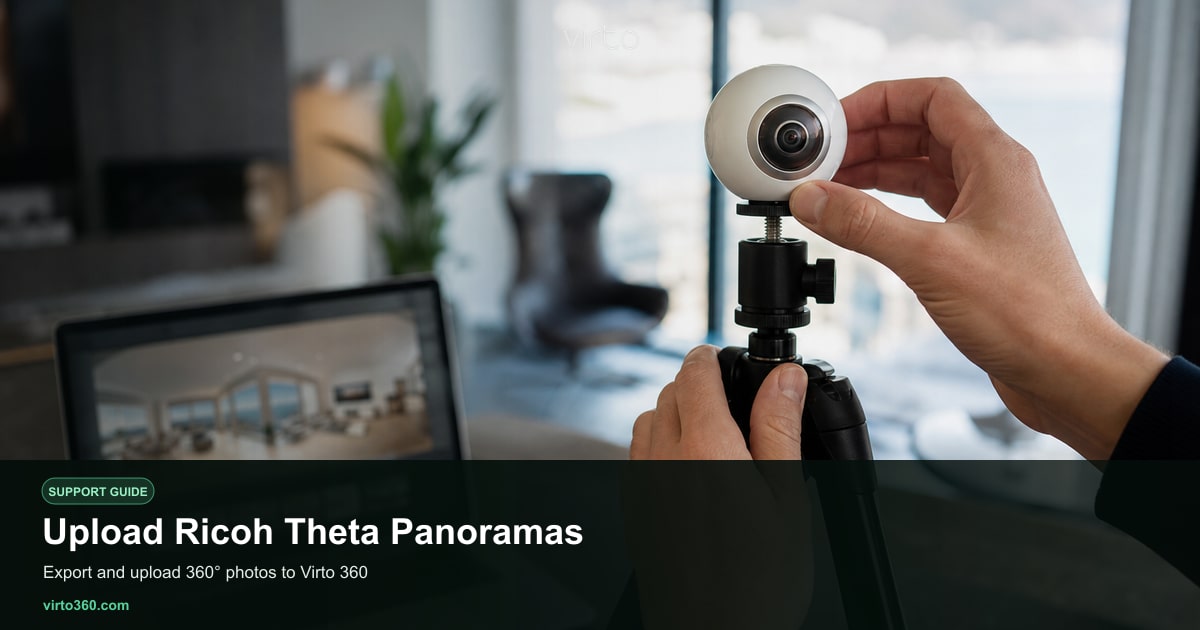
Ricoh Theta cameras are a popular choice for real estate and interior 360° work. Virto 360 accepts standard equirectangular JPG exports from every Theta model — Z1, X, V, SC2, and older bodies. The workflow is shoot on camera or phone app, transfer files, upload at /upload, then edit and connect scenes in /filters. Everything stays free in the browser with no Ricoh-specific plugin required.
Recommended Theta settings
- Image mode — still photo, not video, for sharpest web tours (6K or highest resolution your model offers).
- HDR — enable for high-contrast interiors with bright windows; reduces blown highlights.
- DR compensation — use on Theta models that offer it for window-heavy rooms.
- ISO — keep as low as light allows; raise only in dim basements.
- Self-timer or remote — avoids hand shake and keeps you out of the stitch line.
Tripod height and placement
Eye level near 1.5 m / 5 ft reads naturally on desktop and VR. Center the camera in each room for even wall coverage — not in a corner unless the space is tiny. Step out of line of sight before capture. Theta stitches quickly but cannot remove you if you stand in the merge zone. For nadir (floor hole), enable Ricoh’s built-in nadir compositing in the mobile app when available; minor floor patches can be finished with AI object removal in /filters.
Transfer and export files
- Shoot rooms in a logical order and note names on a shot list.
- Transfer JPGs via Ricoh THETA app, USB, or SD card to your computer.
- Confirm each file is equirectangular 2:1 aspect ratio (e.g. 5376×2688 or similar).
- Optional — batch rename: 01-entry.jpg, 02-living.jpg for easier hotspot labeling.
- Open virto360.com/upload and drag files into the upload area.
After upload
Virto optimizes Theta JPGs for web delivery automatically. Open /filters to reorder scenes, apply filters if rooms were shot at different times of day, and connect doorways with Go to scene hotspots — see connect-panoramas. Theta Z1 files are large and detailed; upload on a stable connection. If one room fails, re-export that single panorama and use replace in the editor strip instead of rebuilding the whole tour.
Theta vs workflow tips
- Shoot all rooms before moving furniture — consistency matters for buyer trust.
- Turn on all lights and use same color temperature bulbs where possible.
- Closet and bathroom doors — open or closed, but stay consistent across similar units.
- Battery — carry a spare; re-shooting one room is easy, returning to a staged listing is not.
Insta360 shooters follow a parallel path in upload-insta360. When the tour is ready, publish from /share and share via link, embed, or QR. Virto 360 is completely free for Ricoh Theta workflows from upload through VR viewing.