View Virtual Tours in VR Mode
Immersive headset and phone VR viewing for published Virto 360 tours
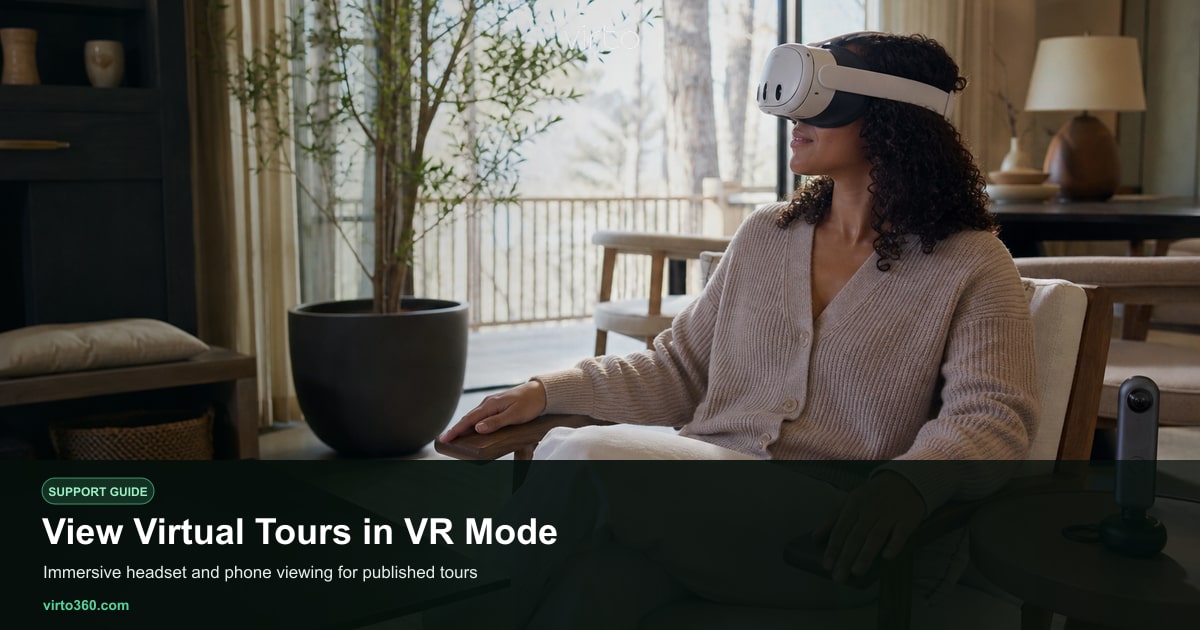
VR mode lets viewers step inside your panoramas with a headset-oriented stereo view instead of only dragging with a mouse or finger. Every tour published from /share on Virto 360 can open this browser VR mode — no separate VR file, no Unity build, no app store submission. Send the same link you use for desktop; viewers choose the VR / headset control in the player when they want the immersive view.
How viewers enter VR
- Open the published tour link (from /share, QR code, or embed).
- Look for the VR or headset button in the tour player toolbar.
- On Meta Quest, open the link in Meta Browser or Firefox Reality.
- On phone, some browsers offer split-screen VR for cardboard holders; rotate to landscape when prompted.
- Use head movement to look around; click or gaze at hotspots to move between scenes.
Supported devices
- Meta Quest and similar headsets — open the share link in the headset browser and use Virto’s VR mode for stereo viewing.
- Phone cardboard-style viewers — use VR mode where the mobile browser supports split-screen stereo.
- Desktop — full 360 view always works; optional VR mode for headset-style preview when you want it.
- Any modern browser — the same published /share link; no native Virto app required.
Shooting and editing for VR comfort
VR magnifies capture mistakes. Keep the camera level — tilted horizons cause nausea in headset. Avoid standing closer than about one meter to walls; tight spaces feel claustrophobic in VR even if they look fine on a laptop. Use at least 4K equirectangular resolution; 6K and higher from Ricoh Theta Z1 or Insta360 X4 reduces visible pixelation when users look around. Blown-out windows glare more in headset — tone-map or HDR-shoot interiors before upload at /upload.
Hotspots and navigation in VR
Go to scene hotspots you placed in /filters work in VR — viewers point at them and confirm to jump rooms. Keep hotspot counts reasonable so icons are easy to target with a controller or gaze cursor. Short labels help in the floating panels. Test your published tour on a Quest before sending to VIP clients; walk every hotspot path once in headset to catch disorienting jumps.
Sharing VR-ready tours
Publish first at /share — VR mode uses the same public URL as normal viewing. Email the link with a note: open in your headset browser and tap VR. QR codes on print materials work too; scanning on phone gives the standard 360 view, while headset browsers vary by device. Embeds use the same viewer controls, including optional VR mode.
Virto 360 includes VR at no cost alongside embed, QR, and unlimited publishing. For capture settings that hold up in headset, see upload-ricoh-theta and upload-insta360. New to the platform? Start with getting-started, then publish-tour when your walkthrough is ready for immersive viewing.