AI Virtual Tour Software for Architects: Turn 360 Renders Into Interactive Presentations
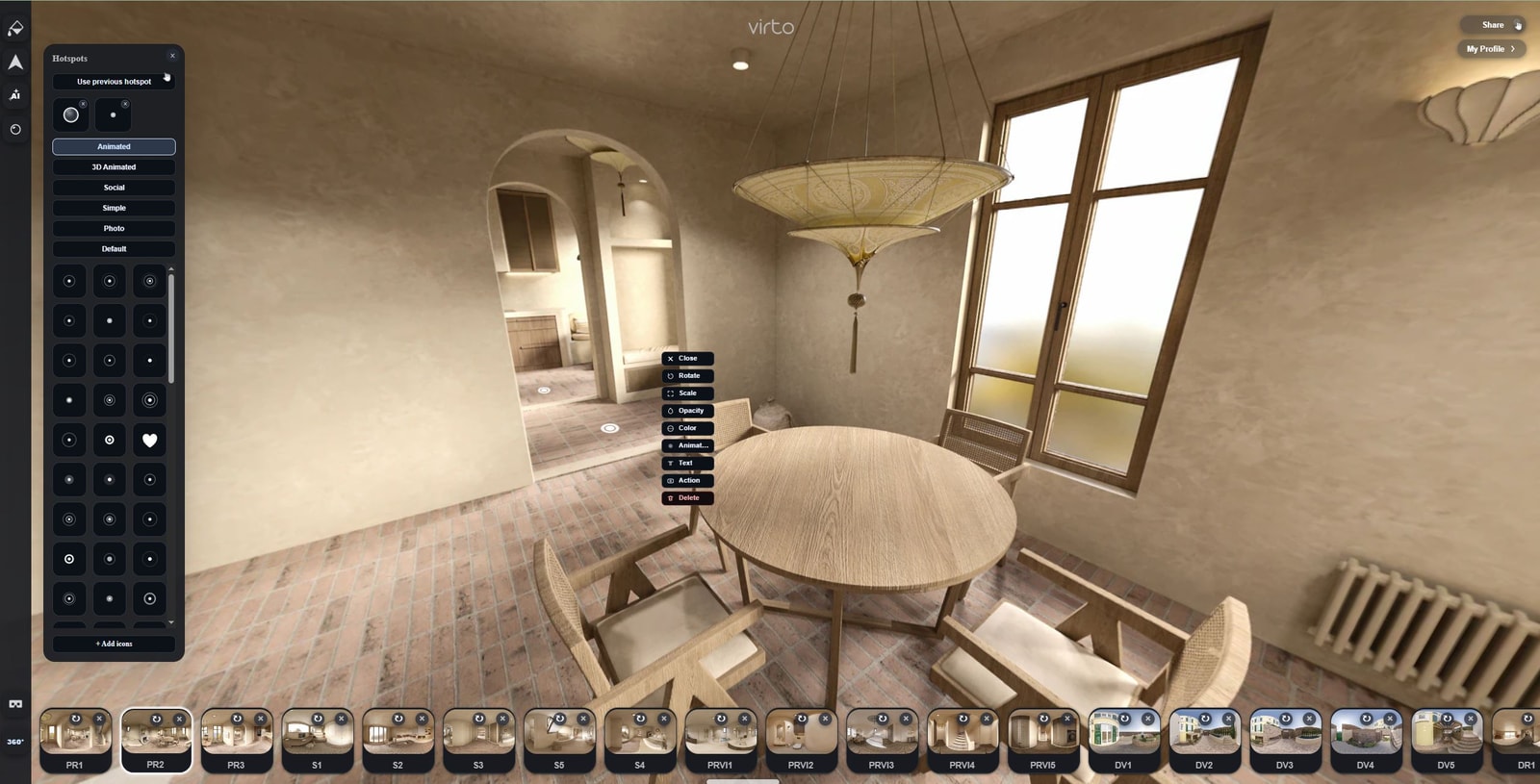
Exported Enscape and Twinmotion panoramas show the design, but they do not automatically create a guided presentation. Virto 360 lets architects clean small render artifacts, connect viewpoints with hotspots, and share the proposal through one browser link.
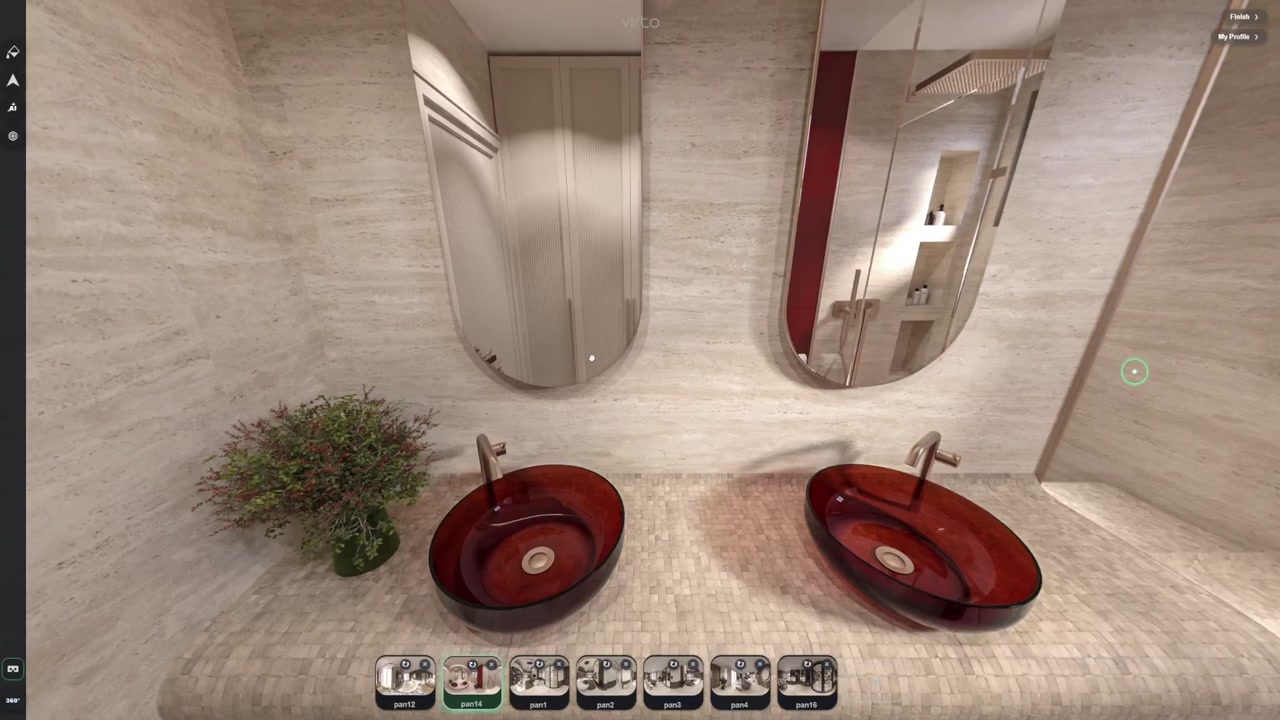
A hero render is useful for presenting the strongest view of a project. It is less useful when a client wants to understand what happens between the entrance, lobby, circulation core, apartment, and terrace.
Exporting several 360° viewpoints solves only part of that problem. The panoramas still need to be organized and connected into a route that someone outside the design team can understand.
Virto 360 sits after the visualization workflow. The model and design decisions remain in Revit, SketchUp, Enscape, Twinmotion, or another visualization tool. Virto turns the exported panoramas into an interactive browser presentation with optional AI cleanup, hotspots, a share link, and website embed. For free hosting and Enscape export basics, see Free Virtual Tour Software for Architecture. For field photography versus unbuilt work, see Virtual Tours for Architects. This page focuses on artifact cleanup plus the interactive route.
Rendered proposals and site photography require different rules
Design presentations normally use equirectangular panoramas exported from the visualization model. Construction updates use panoramas captured on site with a 360° camera. Both can be uploaded to Virto 360, but they should not be presented as though they show the same kind of information.
Clearly label rendered proposals, design options, and real construction photographs. When two finishes or schemes are being compared, separate tours or unmistakably named scenes reduce the chance that a client confuses one option with another.
Export settings that make hotspots easier later
- Keep eye height consistent across viewpoints (about 1.6 m is common)
- Name files by level and zone before upload
- Include the doorway or threshold to the next space when possible
- Keep lighting intent consistent within one presentation set
Virto accepts standard equirectangular JPG or PNG panoramas in a 2:1 aspect ratio. There is no Enscape or Twinmotion plugin required — export, then upload.
Where AI helps—and where the model should be corrected instead
AI Object Remove can clean a small distracting element that survived the visualization process, such as a temporary proxy object, misplaced entourage element, or minor background artifact.
Generative Fill may help repair a limited sky or surface area when the surrounding visual information is clear. However, AI should not be used to modify massing, structure, circulation, permanent materials, advertised views, or project amenities.
When an error affects the actual design, correct it in the source model and export the panorama again. Virto’s AI tools are intended for presentation cleanup, not design coordination or clash resolution.
Build a route that follows the design
Hotspots should reflect how a person would move through the project: arrival, entrance, lobby, circulation, primary spaces, and outdoor areas. Avoid unexplained jumps between levels or distant parts of the building.
Use short scene names and information points only where they help a non-architect understand the proposal. Labels such as “Shared workspace,” “Existing structure,” or “Proposed terrace” are more useful than long paragraphs copied from a specification document.
Before sending the presentation, give the link to someone who did not work on the model. Ask them to reach one important space without instructions. If they become lost, improve the route before the client meeting.
Share the presentation without sending the visualization stack
Publish the Virto tour and place the share link in the meeting invitation, presentation deck, or review email. Clients can open it in a browser on a phone, tablet, or computer without installing Enscape, Twinmotion, or another visualization viewer.
For a public project, the same tour can also be embedded on a portfolio or project page. A QR code can connect printed boards, sales-gallery materials, or site signage to the browser presentation. After you update and republish, the share URL stays the same.
A five-viewpoint studio test
- Export five important viewpoints from an active project
- Name them by level and space
- Correct one small render artifact with AI, only when necessary
- Connect the viewpoints in the order a client would explore them
- Send the link to a colleague who was not involved in the model
- Ask them to find one important space without assistance
If they understand the project route without a verbal explanation, the tour is ready for a client review. Free-plan details: free 360 virtual tour software — AI virtual tour software overview: AI virtual tour software Platform overview: virtual tour software.
Frequently asked questions
Can I use Enscape or Twinmotion panoramas in AI virtual tour software?
Yes. Export equirectangular 360 views (2:1 JPG or PNG), upload them to Virto 360, then add hotspots and optional AI cleanup before sharing.
Do clients need Enscape installed to view the tour?
No. They open your Virto share link in a browser on phone, tablet or laptop — no visualization plugin required.
Should architects use AI to change the design in the tour?
No. Use AI only for minor artifact or clutter cleanup. Design changes belong in the source model, then re-export the panorama.
Can I mix site progress photos and renders in one tour?
Virto 360 can accept both types of equirectangular panorama. However, clearly label which scenes are renders and which are site photographs. For formal reviews, separate tours for proposed design, construction progress, and completed work are usually easier for clients to understand.
How do I put the tour in an investor deck?
Paste the share URL on the slide, or embed the iframe on a project webpage and link from the PDF. A QR code helps in physical meetings.