AI Virtual Tour Software for Real Estate: From 360 Camera to Property Listing
A practical camera-to-listing workflow: capture the property, clean small distractions with AI, connect the rooms, and publish a share link, QR code, or website embed from the same browser-based platform.
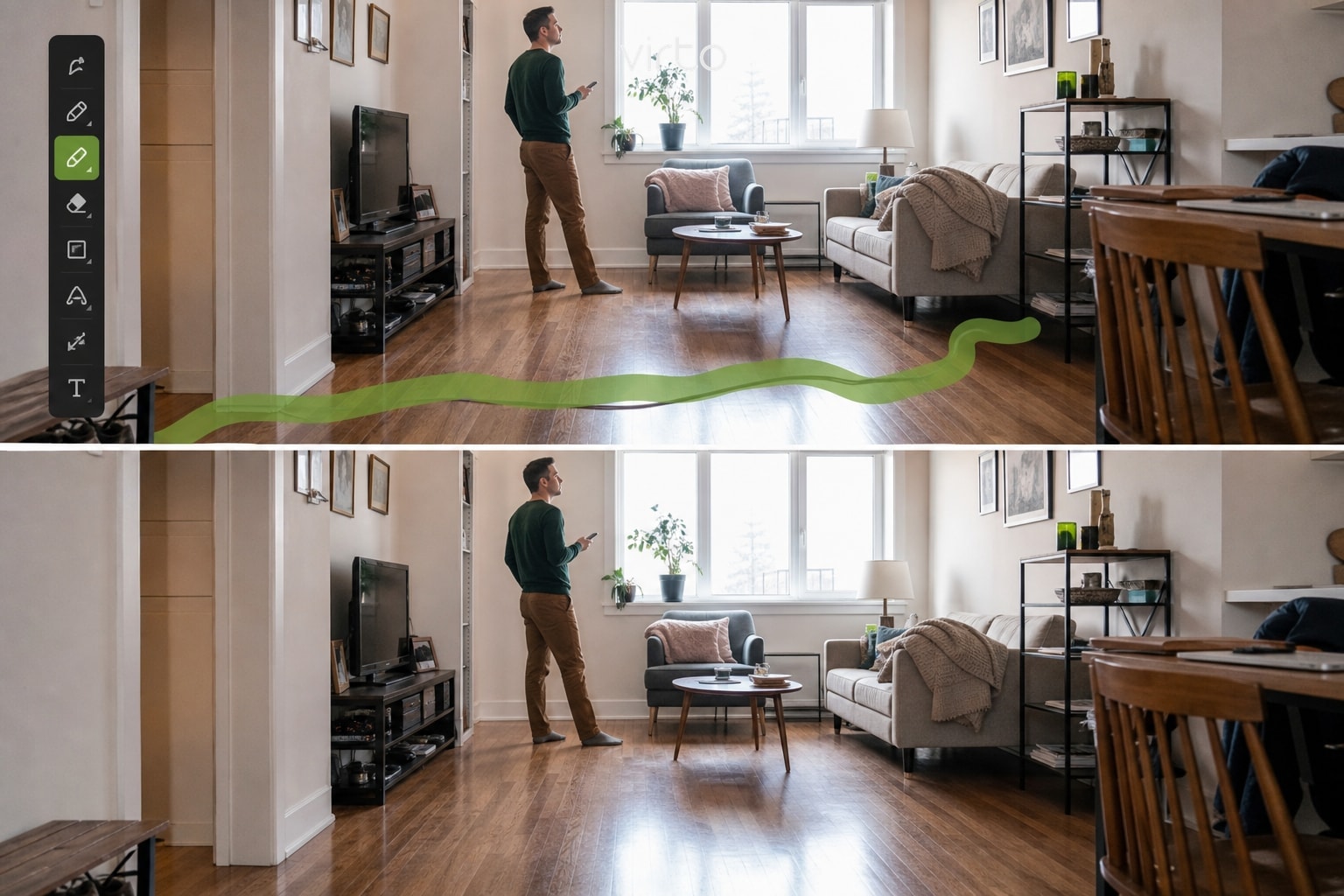
Property tours often need to be published while the listing is still fresh. A visible cable, camera tripod, forgotten bag, or other temporary distraction can delay delivery even when the rest of the panorama set is ready.
AI virtual tour software helps shorten the workflow between capture and publication. It should not be used to invent a different property. The goal is to present the real space clearly, connect the rooms naturally, and give prospective buyers a tour they can open without installing an application.
This guide follows the complete Virto 360 workflow: upload the panoramas, clean the scenes that need attention, build the walkthrough, and publish it for sharing or embedding. Detailed shooting technique stays in How to Shoot 360° Photos for Real Estate Virtual Tours; MLS paste fields are covered in How to Add a Virtual Tour to Your Real Estate Listing.
What AI virtual tour software should—and should not—change
Useful AI can remove limited temporary distractions that do not define the property: a charging cable, tripod, small bag, or person who accidentally entered the frame.
It should not hide permanent damage, remove structural elements, change room dimensions, invent a view, or add amenities that a visitor will not find at the property.
Use AI for presentation cleanup, not for changing the facts of the listing. When an edit could affect how a buyer understands the property, keep the original panorama or reshoot the scene.
Step 1 — Capture the property in a clear room sequence
Walk the home in a logical order — entry, living areas, kitchen, bedrooms, baths, outdoor. Capture each viewpoint at a consistent height and make sure the doorway leading to the next room is visible. The better the original panorama and room sequence, the less correction the tour will need later. AI can repair limited distractions, but it cannot replace a missing room or correct a poorly positioned camera.
Step 2 — Upload 360 photos into one listing tour
Create one Virto tour for the address. Upload equirectangular JPG or PNG files (2:1) and name scenes by room in the scene list so anyone on the team can find Kitchen or Primary Suite quickly. Open each sphere once before editing to confirm the export is a full panorama, not a flat phone photo.
Step 3 — Remove limited temporary distractions
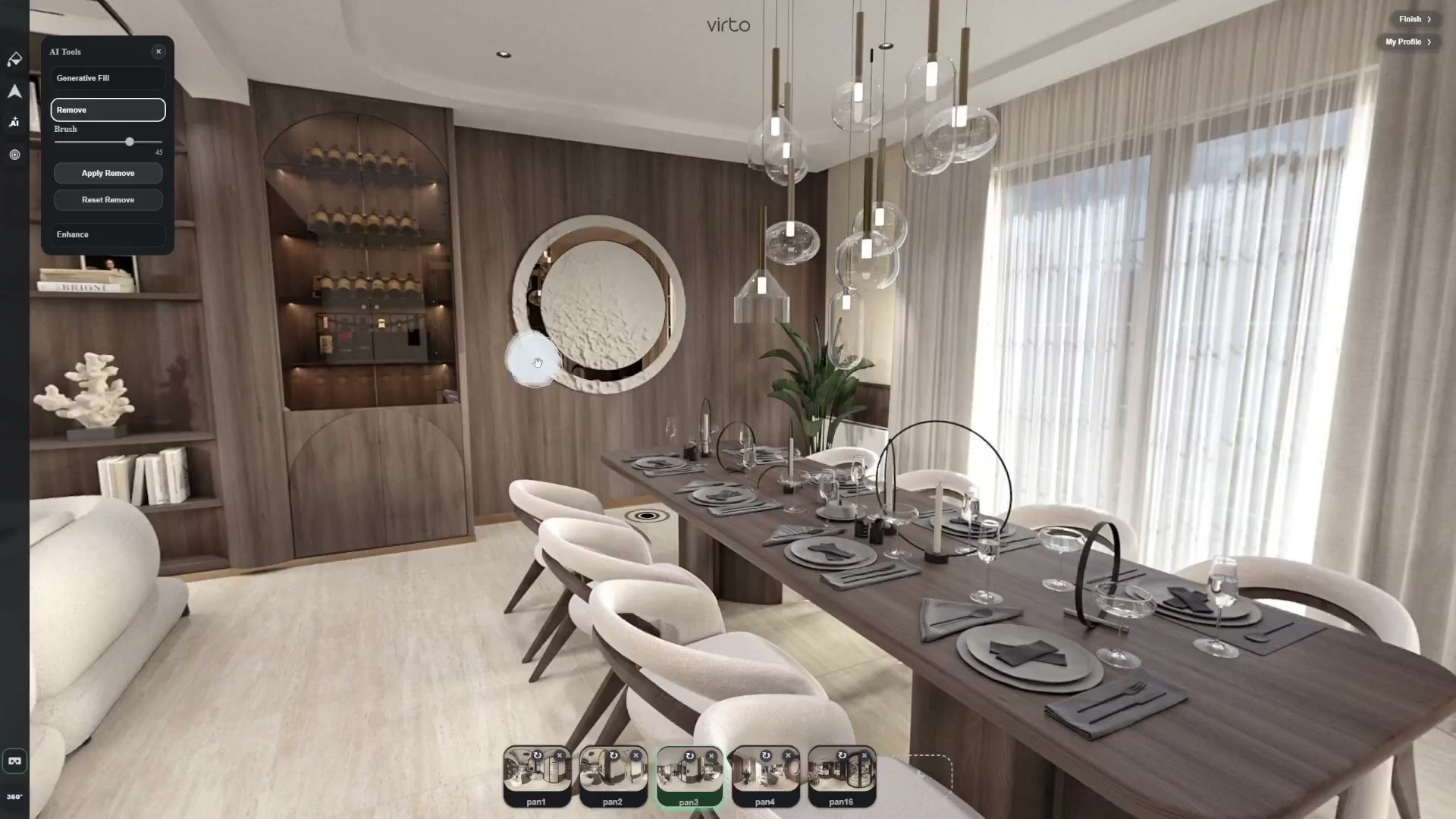
Start with the scene containing the most noticeable temporary object. Use AI Object Remove on items such as cables, a tripod base, a small bag, or another isolated distraction.
Keep the selected area tight and check the generated result at full size. Repeating floorboards, tiles, reflections, and strong shadows are more difficult to reconstruct. When the edited texture looks unnatural, undo the result and retry with a smaller selection.
Do not use object removal to conceal permanent defects, missing safety features, damage, or other facts that could influence a buyer’s decision.
Step 4 — Repair small problem areas carefully
Generative Fill can help with limited areas such as a small damaged floor patch or a simple blown section of sky or window. Select only the area that needs correction and review the result on both desktop and mobile.
Avoid adding furniture, landscaping, views, or architectural details unless the tour is clearly presented as a concept or virtually staged visualization. For an active property listing, the safest result is one that still accurately represents what a visitor will see in person.
Use Enhance or the standard filters when the entire panorama needs a small adjustment in brightness, contrast, or warmth. If the image becomes unnatural, return to the original version.
Step 5 — Connect rooms so buyers can walk the home
Place hotspots on doorways in showing order and set opening views toward the next room. After image edits, preview the full tour again on desktop and mobile. Confirm each hotspot is visible, points at the correct doorway, and opens the expected scene.
Step 6 — Publish for the channels that support virtual tours
After finishing the tour, Virto 360 provides:
- a public HTTPS share link
- a downloadable QR code
- an iframe embed for websites that accept external embeds
Place the link in the dedicated virtual-tour or media field provided by your property portal, MLS, or brokerage system. Requirements differ between platforms, and some distinguish between branded and unbranded tours, so confirm the applicable rules before publishing.
Use the iframe on a brokerage or property website that supports external embeds. Use the QR code on flyers, signs, or open-house materials. When you update and republish the existing Virto tour, the share URL remains the same.
How long does the workflow take?
The total time depends on the number of rooms, panorama resolution, upload speed, hotspot complexity, and how many scenes require AI correction.
A clean, well-organized property can move from finished panorama exports to a published tour relatively quickly. A larger property or a shoot with many corrections will take longer. Instead of applying AI to every scene, correct only the panoramas containing visible distractions.
For your first project, measure the time from upload to final share link. That gives your team a more useful estimate than a universal promise based only on bedroom count.
Questions to answer before publishing
- Where should I place the tour link? Use the dedicated virtual-tour, media, or external-link field when the listing platform provides one. Check the rules of the specific MLS, portal, or brokerage website.
- Can I update the tour after the listing is live? Yes. Edit and republish the existing Virto tour to keep using the same public URL.
- Should every scene use AI? No. Apply AI only where a visible distraction needs correction. Clean original panoramas should remain unchanged.
- Do I need separate desktop software for basic cleanup? Virto 360 includes Object Remove, Generative Fill, Enhance, filters, hotspots, and publishing in the same browser-based workflow. Complex retouching may still require a dedicated image editor or a reshoot.
Start with one listing that needs a tour this week
Upload the panoramas you already have, remove one temporary distraction if needed, connect the rooms, and publish. Free-plan hosting, embed and QR: free 360 virtual tour software — AI virtual tour software: AI virtual tour software — virtual tour software (platform): Virtual Tour Software
Frequently asked questions
What is AI virtual tour software for real estate?
It is a platform that turns 360° property photos into a linked walkthrough and can use AI to remove limited temporary distractions before you publish a share link, QR code, or website embed.
Can I create an AI virtual tour for a property the same day I shoot?
Often yes, when panoramas are already exported and only a few scenes need cleanup. Total time depends on room count, file size, and how many corrections you make.
Is AI object removal allowed on property listings?
Rules differ between countries, MLS systems, property portals, agencies, and brokers. Check the rules that apply to your listing. As a general production principle, avoid edits that hide permanent defects or materially misrepresent the property. Use AI for limited cleanup of temporary distractions, and keep the original panoramas as a record.
Do buyers need an app to open the tour?
No. Virto 360 tours open in the phone or laptop browser from your share link or QR code.
What cameras work with this workflow?
Virto 360 accepts standard equirectangular JPG or PNG panoramas in a 2:1 aspect ratio. Ricoh Theta and Insta360 cameras commonly export this format, as do many professional panorama-stitching applications.