AI Virtual Tours: Remove Objects, Fix Skies & Enhance 360° Photos
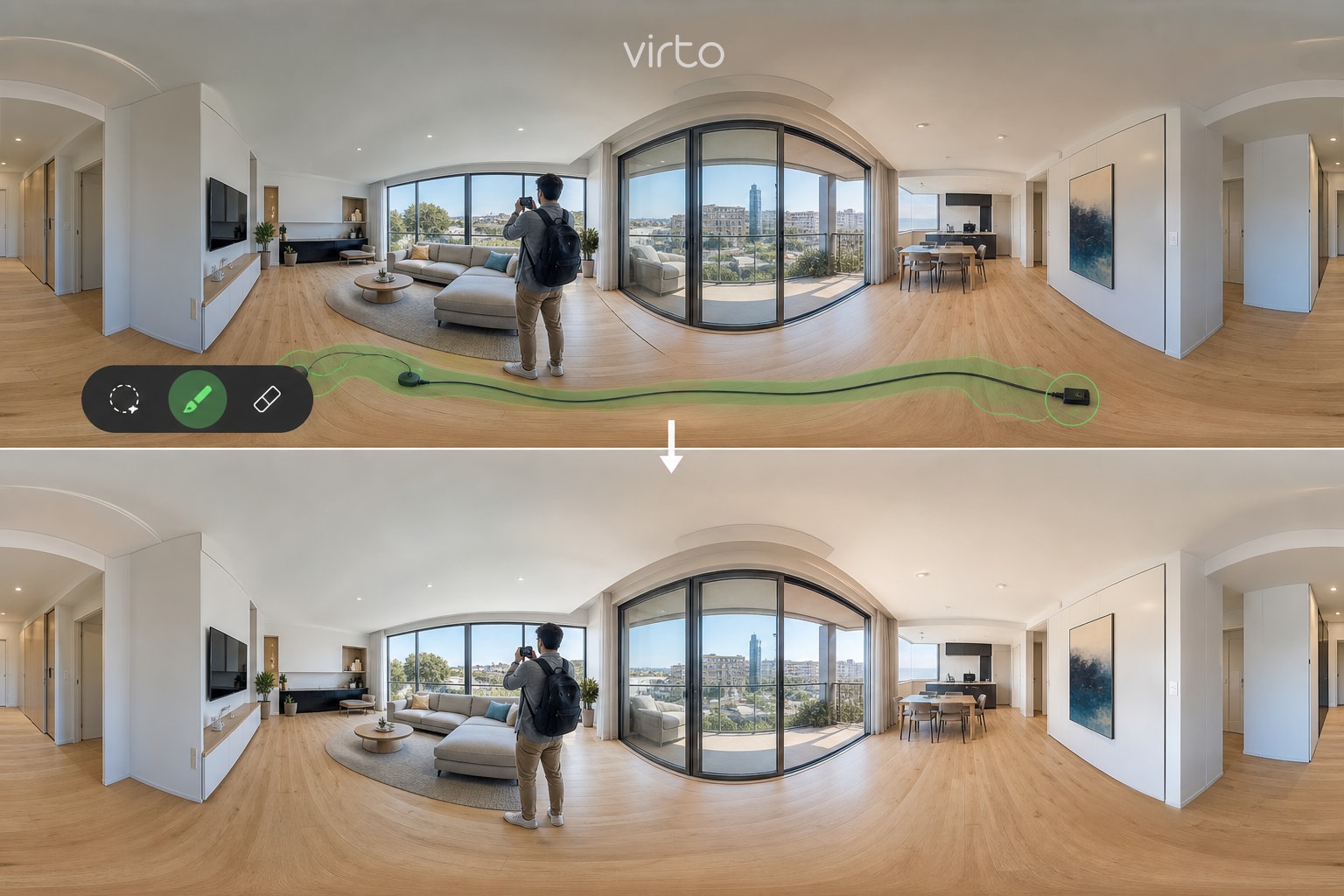
Tripod nadir, tourist in frame, blown window, dull sky — the stuff reshoots used to fix. What Virto's AI tools actually do in a 360° pipeline, and where we still tell you to walk back with the camera.
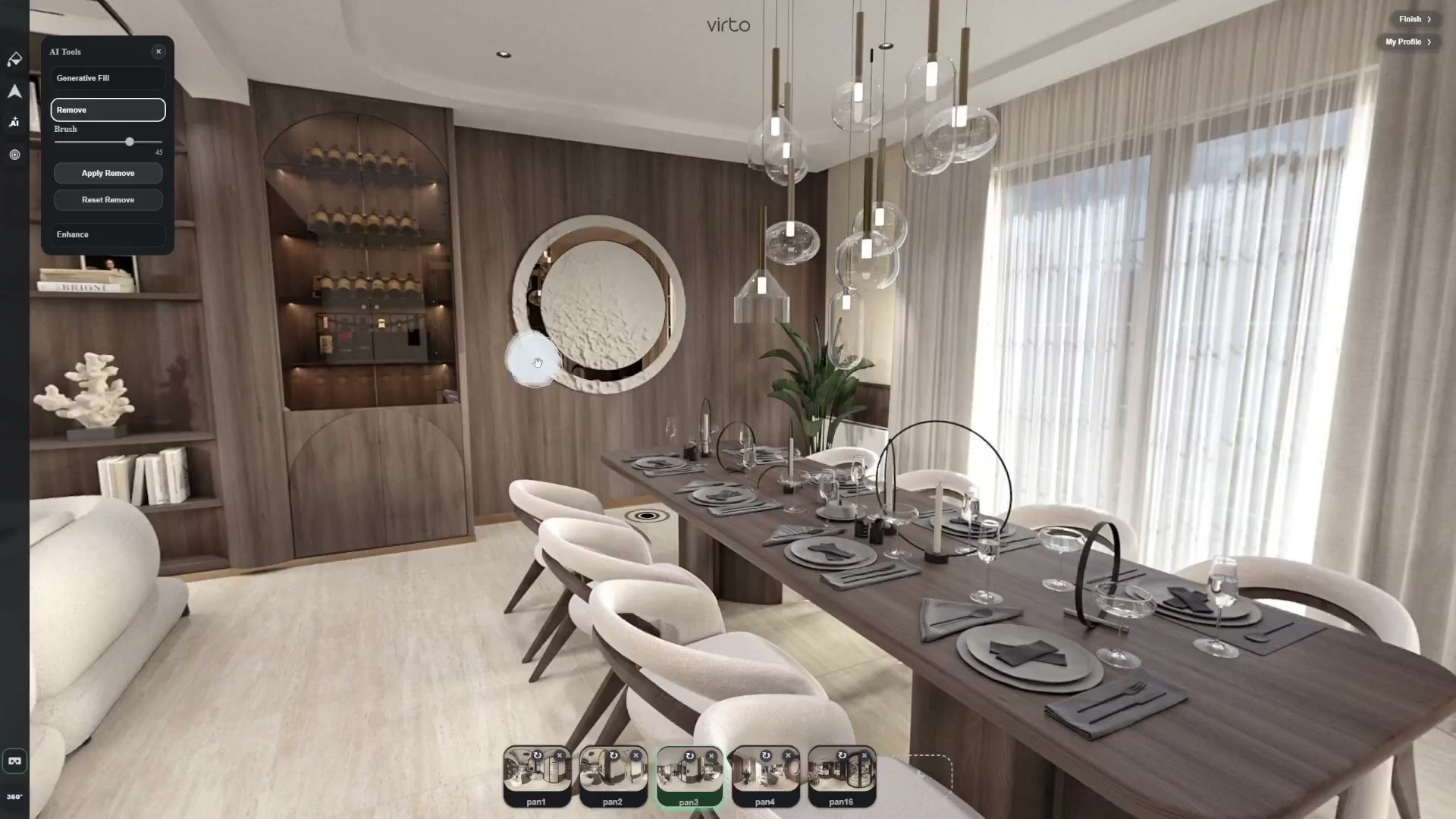
Nobody downloads a virtual tour platform to spend an hour in Photoshop patching a nadir. They want the link out before the open house. Still — the raw Ricoh export almost always has something: your shadow on the floor, a tourist frozen mid-stride in a hotel lobby, a window blown to white because HDR bracketed wrong. That is where the AI panel in Virto 360 lives, inside the same browser tab where you placed hotspots five minutes ago.
We are not selling magic. AI on equirectangular images is harder than on flat photos — seams, poles, and perspective mean small edits win, big fantasies fail. This guide is what our team actually recommends to agents, hotel hosts, and photographers using virto360.com daily. Cleanup is one slice of looking finished — the rest of a professional virtual tour is height, opening view, and doorways that go somewhere.
Three tools — different jobs
- AI Object Remove — brush over cables, bins, tripod nadir, single person; inpaints locally
- Generative Fill — prompt-based fill for sky patches, window views, large uniform areas
- Enhance — global contrast, sharpness, exposure lift; one-click cleanup before publish
Browser filters (brightness, warmth) still exist for quick tweaks without AI. Use those first when the whole room is slightly dark; use AI when one object or region is wrong.
AI Object Remove — what it handles well
Tripod nadir circles are the classic case — brush the floor patch under the camera, confirm, move on. Power cables along baseboards, a forgotten laundry basket, fire extinguisher you could not move in a furnished rental: same workflow. Keep the brushed region tight; the model fills from surrounding pixels on the sphere.
- Works best on objects under ~15% of the frame
- Avoid removing load-bearing visual truth — do not delete a support column to “clean” a loft
- Check the nadir on mobile after edit — phone viewers look down more than you expect
- If the floor pattern is complex (hex tile), zoom in and brush in two passes rather than one huge blob
Generative Fill — skies, windows, and restraint
Blown windows and grey exterior sky through glass are fixable with a short prompt: “clear blue sky”, “soft overcast”, “dusk sky warm”. Mask only the blown region — not the whole facade. Generative Fill is not for inventing a ocean view you do not have; buyers and guests remember that kind of lie longer than a cable on the floor.
Exterior 360° shot from the balcony? Fix sky halos carefully — equirectangular tops are sensitive. Preview with drag-to-look-up before you publish. One good prompt beats five poetic ones; “evening sky gradient” works, three paragraphs do not.
Enhance — when one click is enough
Enhance lifts shadows and sharpness globally. Useful when you rushed a shoot at dusk and the room reads muddy. If faces on artwork or wood grain start looking plastic, undo and fix exposure at capture next time. Enhance is the last step, not the first — structure and hotspots first, polish second.
Workflow we recommend (order matters)
- Upload all scenes, name rooms, link hotspots — prove the walkthrough works
- Walk the tour on your phone; fix navigation before pixels
- Per scene: Remove → Generative Fill (if needed) → Enhance (optional)
- Re-open hotspots view — edits replace the JPG; confirm doorway markers still align
- Publish once; same share URL updates for viewers after republish
What AI still cannot save
- Motion blur from hand-held 360 shots — reshoot on tripod
- Missing rooms you never photographed — AI cannot invent a bathroom
- Wrong white balance between linked scenes — fix in camera or batch before upload
- Massive crowds in tourist hotels — clone stamp heaven; better to reshoot at 7 a.m.
- Legal issues — removing a structural crack to hide defect is fraud, not editing
Real estate vs hospitality — same tools, different ethics
Agents remove clutter to match staging standards — industry norm. Short-term rental hosts remove personal items for privacy. Hotels fix a housekeeping cart in a lobby panorama — fine. Hotels swapping a sea view — not fine. When in doubt, ask whether the guest would feel deceived standing in the room. If yes, reshoot or disclose.
Performance and credits
AI runs server-side with a local fallback for small inpaints when the network hiccups — tours still export. Heavy Generative Fill on 6K panoramas takes longer than phone preview; wait for the progress indicator before switching scenes. Free tiers include access to try the pipeline; high-volume teams on paid plans get higher limits — check your account settings for current quotas.
Before / after in the publish checklist
Open the share link in an incognito window. Compare one edited scene to memory of the raw file on disk. If you cannot tell AI ran, you are in the sweet spot. If the rug pattern melted, revert and brush smaller. Then embed on the listing — our embed guide covers iframe and QR for the finished tour.
Try it on one problem shot
Pick the worst panorama in your current folder — the one you avoided sending to the client. Upload only that scene to a test tour, run Remove on the one annoyance, preview on mobile. If it saves a reshoot, apply the same discipline to the rest. The product page for this tool is AI object removal for 360 photos. New to uploads and hotspots? Start with how to create a free virtual tour, then come back here before you hit Finish.
Where to go next
For the product workflow, see AI object removal for 360 photos. AI tools live on AI virtual tour software.
Frequently asked questions
Does AI editing change my original JPG on disk?
Virto stores the edited version for the tour. Keep your original exports on your computer as backup — we recommend never deleting camera files until the client signs off.
Can I remove a person from a busy hotel lobby panorama?
Single static person — often yes. Large crowds — quality drops and ethics matter; shoot early morning or accept imperfection.
Will Generative Fill work on every window?
Simple blown highlights — yes. Complex mullions with reflections of interior lights — may need manual retry or partial mask.
Do viewers see that AI was used?
There is no watermark for AI edits. Responsibility is yours — edit for clarity and cleanliness, not deception.