Remove Objects from 360° Photos with AI
Remove tripods, people, cables and clutter from 360° photos with AI. Clean panoramas and continue building your virtual tour in the browser with Virto 360.
Quick answer: Remove tripods, people, cables and clutter from 360° photos with AI. Clean panoramas and continue building your virtual tour in the browser with Virto 360.
Remove tripods, people, cables and unwanted clutter from 360° panoramas without switching to a separate photo editor. Virto 360 lets you clean the scene with AI, then continue building and publishing your virtual tour in the same browser.
Remove Tripods, People and Clutter from 360° Photos
A small distraction can ruin an otherwise clean panorama. Tripod legs, bags, cables, towels, equipment or someone walking through the frame are especially noticeable once viewers can look around in every direction.
With Virto 360, simply mark the unwanted area and let AI reconstruct the surrounding surface.
- Remove a tripod from a 360° photo
- Remove people from 360° panoramas
- Clean cables, bags and photography equipment
- Remove staging clutter from real estate tours
- Fix small distractions before publishing
AI Object Removal Built Into Your Virtual Tour Workflow
You do not need to export the panorama, open another editor, save a new file and upload it again.
AI Object Removal is built directly into the Virto 360 editor. Clean the panorama, add hotspots, connect rooms and publish the finished tour from the same browser-based workspace.
Object removal is one AI tool inside Virto 360. For the full AI editing story see AI virtual tour software. To build and publish the walkthrough itself, start with Virtual Tour Software.
See AI Object Removal in Action
Brush over an unwanted object, remove it with AI, and continue editing your panorama without leaving the virtual tour editor.
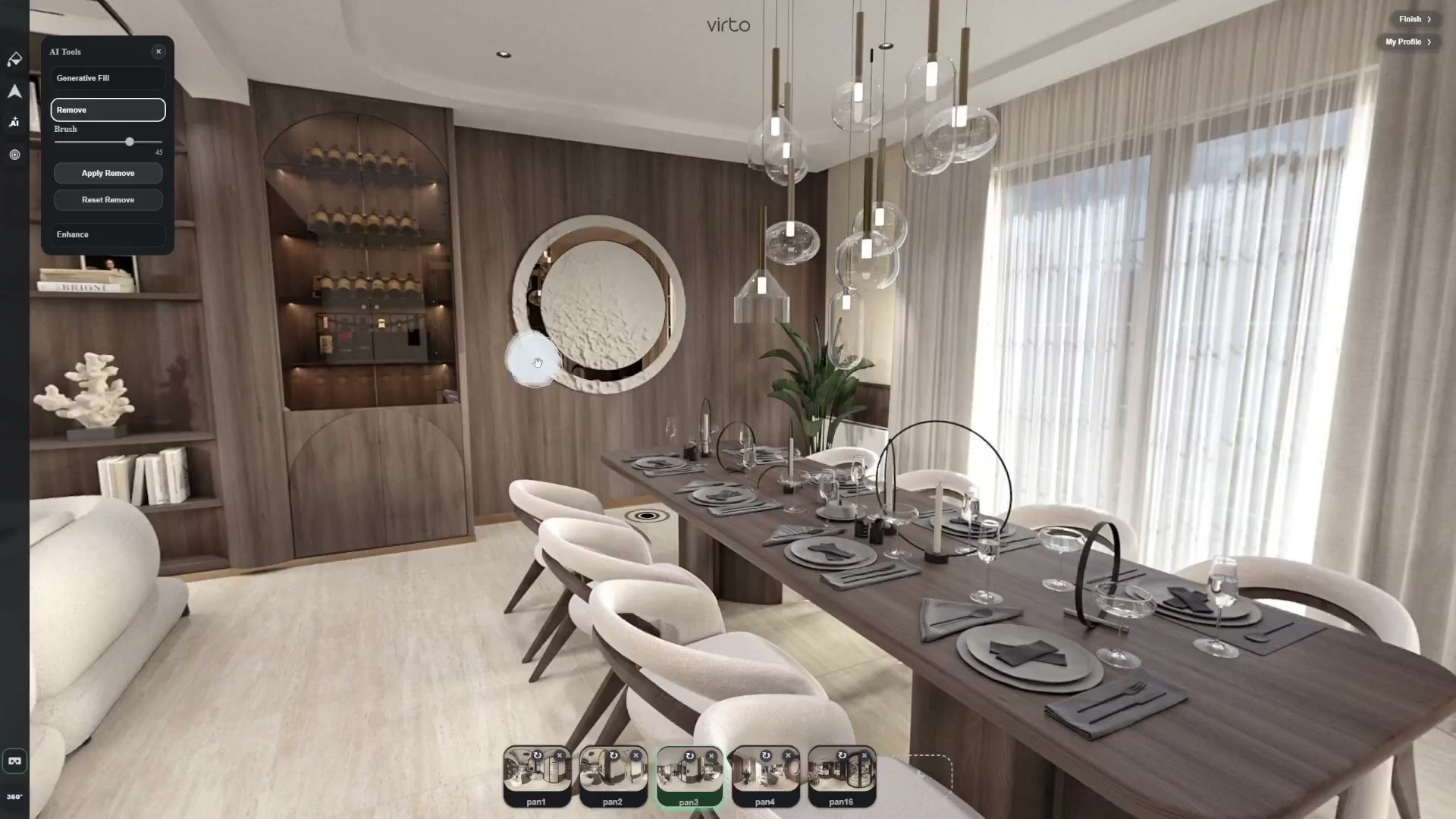
How to Remove Objects from a 360° Photo
- Open your panorama — Open the scene you want to clean inside the Virto 360 editor.
- Select Remove — Choose the AI Remove tool and brush over the object you want to erase.
- Let AI rebuild the area — Virto 360 removes the selected object and reconstructs the surrounding part of the panorama.
- Preview the result in 360° — Look around the panorama and make sure the edited area blends naturally with the scene.
- Continue building your tour — Add hotspots, links and other tour elements, then publish or share your virtual tour.
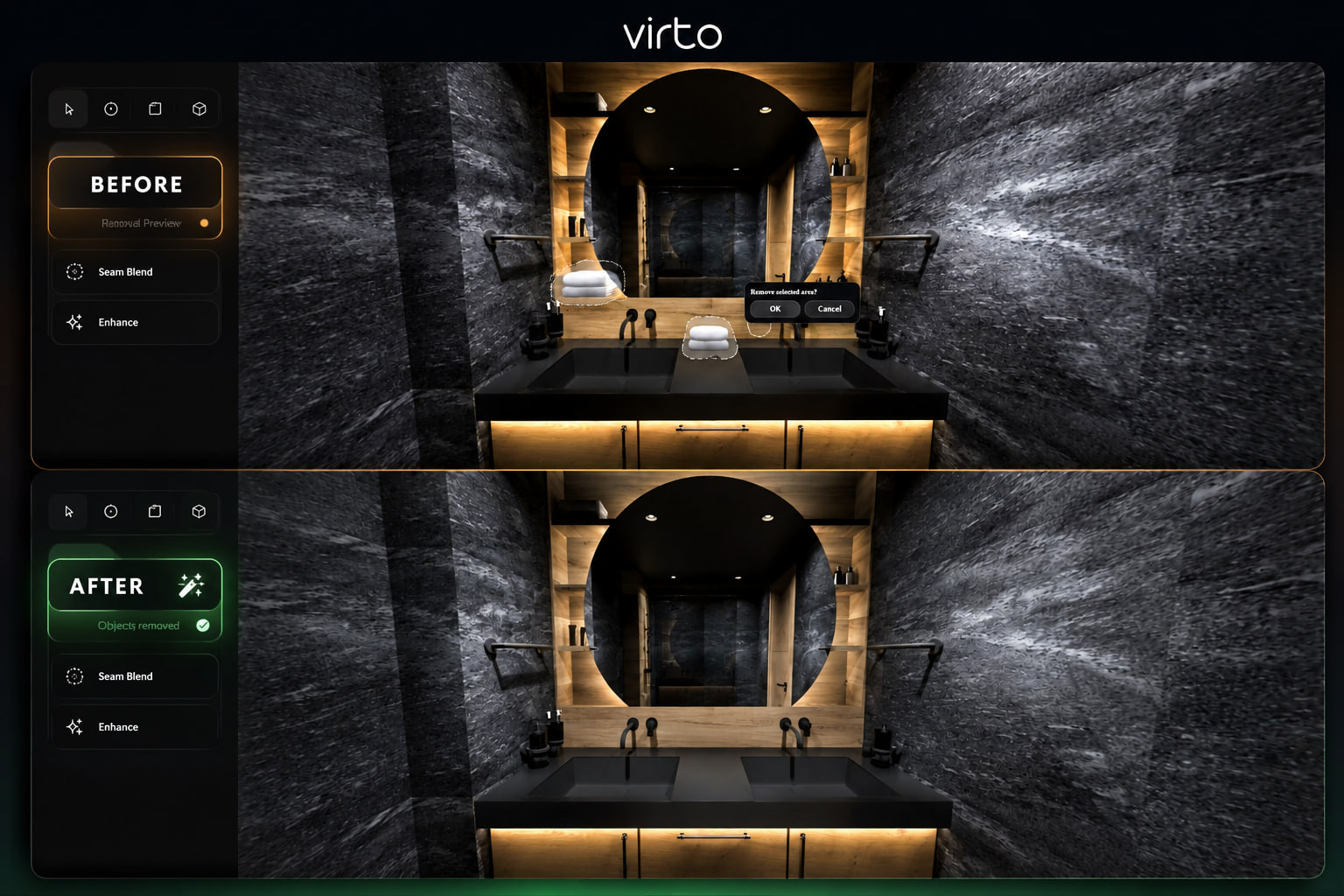
Before and After: AI Object Removal on a 360° Panorama
In this example, unwanted towels are removed from a 360° bathroom panorama while the countertop, mirror and surrounding materials remain intact. The result can then be previewed directly inside the virtual tour editor.
Why Object Removal Is Different on a 360° Panorama
Editing a 360° photo is different from editing a normal flat image. Every part of the panorama becomes part of an interactive view, so an edited area needs to remain convincing when viewers pan, zoom and look around the scene.
Virto 360 lets you remove distractions directly from the panorama and immediately preview the result in the same 360° environment where the final tour will be viewed.
When AI Object Removal Is Most Useful
- Real Estate & 360° Photography — Remove tripods, camera equipment, bags or people before sending the final virtual tour to a client or publishing a property listing.
- Hotels & Vacation Rentals — Clean small distractions such as towels, cleaning equipment or temporary objects so the virtual tour better represents the room.
- Architecture & Interior Design — Remove temporary site clutter and presentation distractions so clients can focus on the space and design.
Tips for Better AI Object Removal Results
AI works best when the selected area stays close to the object you want to remove.
For cleaner results:
- Keep the brush close to the edges of the unwanted object
- Remove smaller objects separately instead of selecting a large area at once
- Check edited areas near mirrors, glass and reflective surfaces
- Preview the result from different viewing angles
- If necessary, undo and retry with a smaller selection
For larger or more complex edits, AI Generative Fill can help rebuild a wider part of the scene. Practical guide: AI Generative Fill for virtual tours.
From Raw Panorama to Published Virtual Tour
Object removal is only one step in preparing a professional 360° experience.
After cleaning your panorama, you can continue in Virto 360 to connect scenes with hotspots, organize the walkthrough and publish a shareable virtual tour — without moving files between different applications.
That means less time spent exporting and re-uploading images, and more time finishing the actual tour.
Object Removal or Generative Fill?
Use AI Object Removal when something already in the panorama needs to disappear.
Use AI Generative Fill when you need AI to rebuild or modify a larger part of the scene.
Both tools are available inside the Virto 360 editing workflow, so you can move between cleanup and more advanced edits without exporting the panorama to another application.
FAQ
Can I remove objects from a 360° photo with AI?
Yes. In Virto 360 you can select an unwanted object in a panorama and use AI Object Removal to erase it and reconstruct the surrounding area.
Can I remove a tripod from a 360° photo?
Yes. Tripods and small camera equipment are common use cases for AI object removal, especially around the bottom of a 360° panorama.
Can I remove people from 360° photos?
Yes. If someone walks through the scene or appears where you do not want them, you can select the person and use AI to remove them from the panorama.
Do I need Photoshop or another desktop editor?
No. AI Object Removal is available directly inside the Virto 360 browser editor.
Is this only an AI 360° photo editor?
No. Object Removal is one part of Virto 360. See AI virtual tour software for the AI tools, and Virtual Tour Software for uploading panoramas, hotspots and publishing.
What types of objects can I remove?
Typical examples include tripods, people, bags, cables, towels, photography equipment and other small distractions inside a panorama.