AI Virtual Tour Software for Photographers: Edit, Build and Deliver Tours Faster
A tripod left in the frame, a passer-by in the lobby, or a small floor patch that needs repair can delay an otherwise finished tour. Here is how photographers use Virto 360 to clean panoramas, connect scenes, and deliver the client link from one browser-based workflow.
Capturing the panoramas is only one part of a virtual tour job. Time is often lost after the shoot: exporting files, correcting small distractions, moving between editing and tour-building software, and preparing something the client can actually open and share.
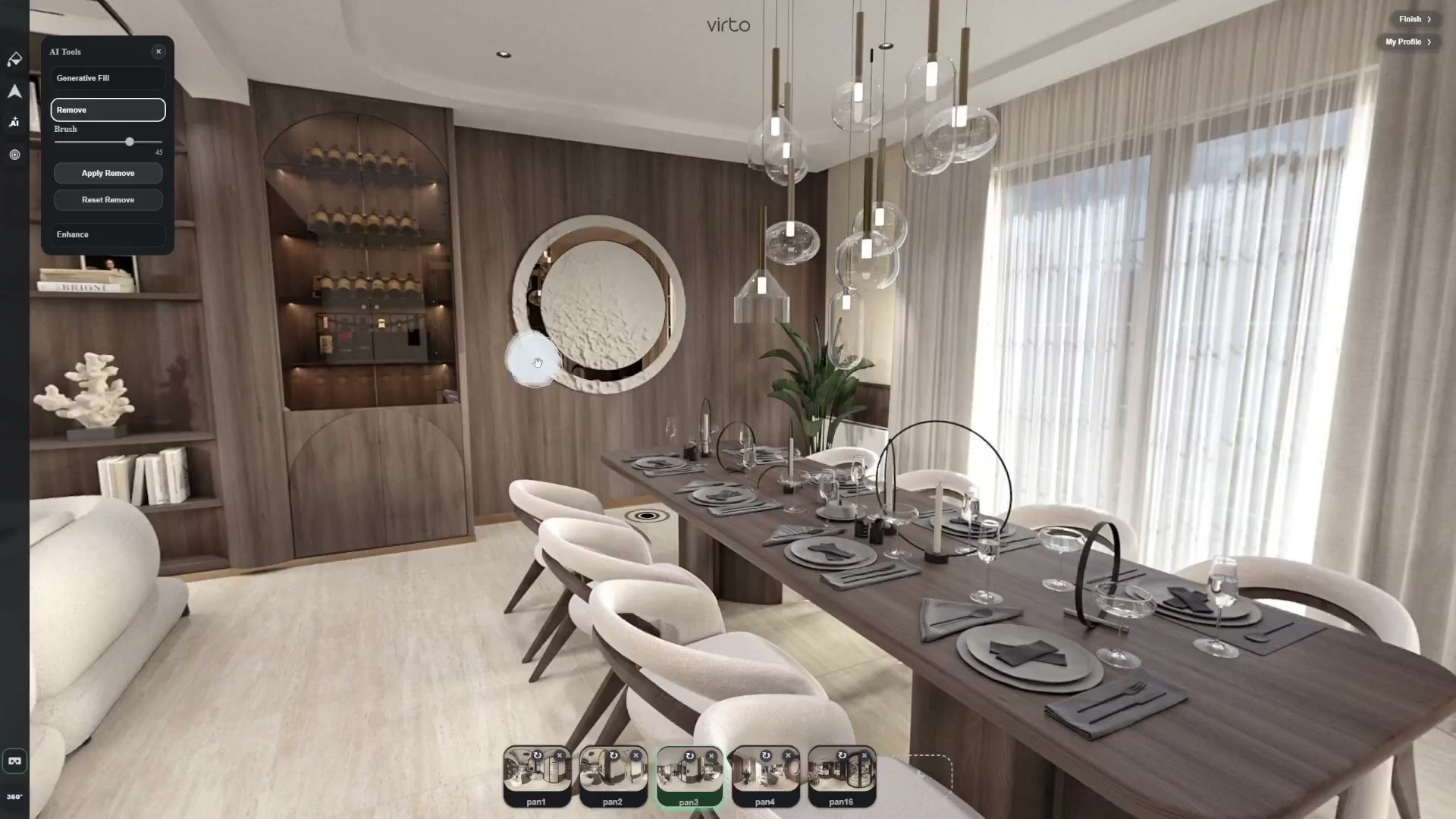
Virto 360 brings the final stages into one browser-based workflow. Upload the panoramas, clean the scenes that need attention, connect them with hotspots, and publish a client-ready link. For a wider look at Object Remove, Generative Fill, and Enhance limits, see our AI editing guide. This article stays on the photographer delivery path.
Where time usually disappears after the shoot
- Tripod or monopod still visible at the nadir after a remote trigger
- One person frozen in a lobby or exterior sphere
- A floor patch or small sky area that would force a reshoot
- Hotspots rebuilt in a second application after desktop retouching
- Clients waiting for a link while files sit in a shared drive
Organize the tour before you start editing
Create one Virto tour for each client property or project. Give scenes clear names that match the brief, such as Lobby, Suite 1204, or Pool Deck. Upload equirectangular exports from your Ricoh Theta, Insta360 workflow, or stitching software.
Before using AI, check that every required panorama appears in the scene list. It is better to discover a missing bathroom or exterior viewpoint now than after you have finished editing the rest of the tour.
Remove tripods, people, and small distractions
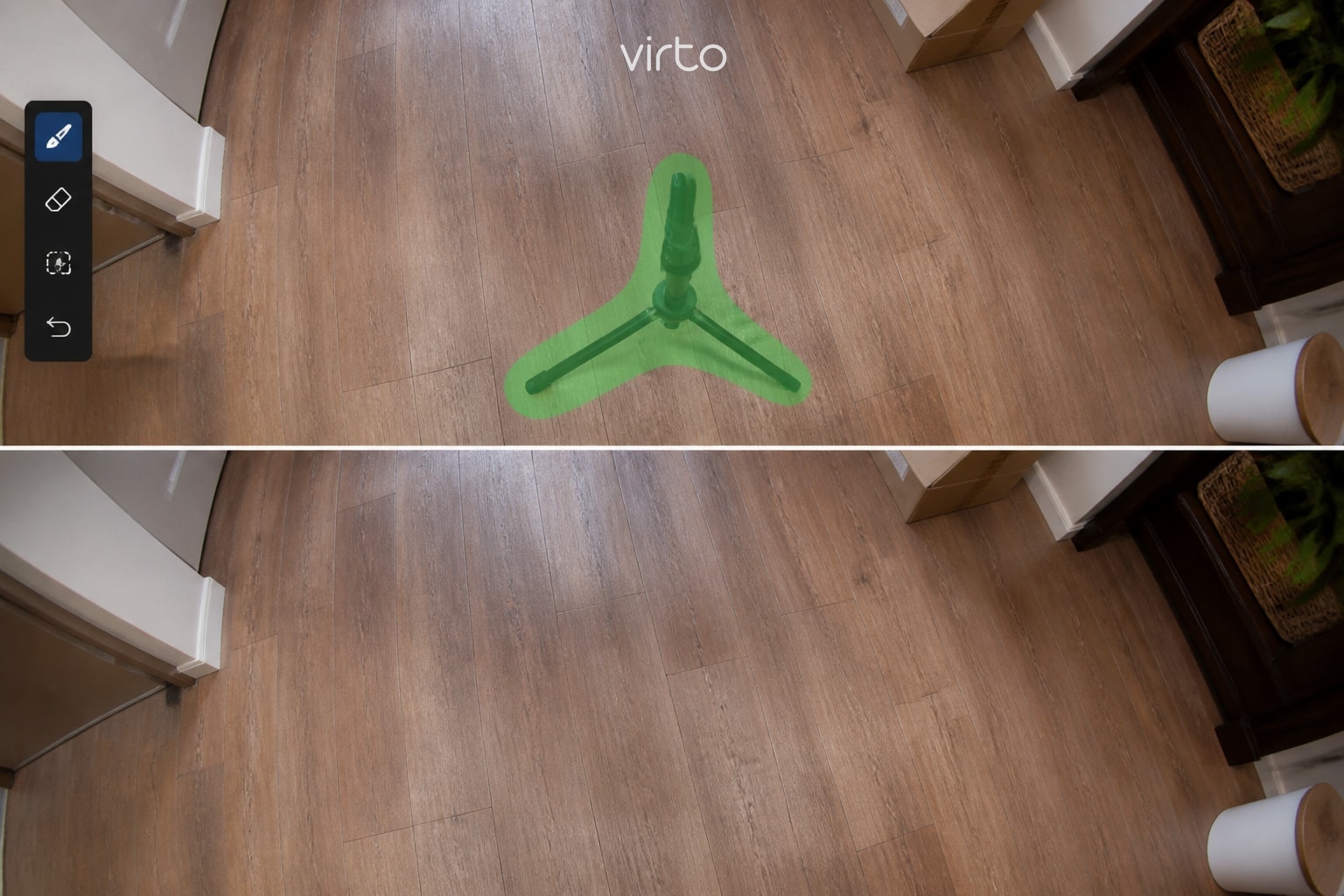
Start with the objects that are most noticeable when a viewer looks around the panorama: tripod legs, a monopod, a forgotten bag, or one person who walked through the frame. Looking straight down at the nadir on a phone often reveals equipment that looked fine on a laptop.
Use a tight selection around the unwanted object and review the result at full size. Complicated floors, repeating tiles, shadows, and reflections may require more than one small attempt. When the generated texture no longer matches the original surface, undo the edit and use a smaller selection.
AI Object Remove works best on limited, clearly defined areas. A busy crowd, severe motion blur, or a large missing section of the panorama is usually a reason to reshoot rather than force an artificial repair.
When Generative Fill is useful
Generative Fill is useful for small repairs where surrounding visual information provides enough context—for example, a limited floor patch, a small damaged sky area, or a simple background surface.
Keep the edited area as small as possible and compare it with the original panorama. For commercial photography, the final image should still represent the real location. AI cleanup should remove distractions, not introduce architecture, views, furniture, or features that were never present.
Connect scenes the client will actually walk
Hotspots are part of the delivered product. Place them on doorways in a sensible order and set each scene’s opening view so the next click lands looking forward. Standard filters (brightness, contrast, warmth) help when a whole sphere needs a light match across rooms shot at different times of day.
After finishing the image edits, preview the complete tour again on desktop and mobile. Confirm that every hotspot is still easy to see, points toward the correct doorway, and opens the expected scene.
Deliver something the client can open immediately
Publishing the tour produces a hosted HTTPS share link that clients can open on a phone, tablet, or computer without installing an application. Virto 360 also provides an iframe embed for websites and a QR code for print materials. For a free QR without registration (PNG or JPG), use the Free QR Code Generator for Virtual Tours.
A simple delivery package can include:
- the public tour link
- one sentence explaining that no app is required
- the iframe code when the client manages a website
- the QR code when the tour will be used in print — generate PNG or JPG on the free QR page if you need a download without opening Share
When a revision is needed, update and republish the existing tour so the client can continue using the same URL. Keep the original camera files and exported panoramas in your own archive. The Virto link is the published presentation, not a replacement for your project backup.
Measure whether AI actually improves your workflow
The value of AI is not the word “AI” in your service description. The value is reducing the time between the final panorama export and the moment the client receives the completed tour.
Track that time across several real projects. Note how long you spend on basic cleanup, hotspot creation, revisions, and delivery. If the browser-based workflow consistently reduces those steps, you can accept more work without automatically adding another editing application or outsourcing every small correction. Example only: some photographers find that small Object Remove passes inside the tour tool replace a longer desktop retouch step for the same kind of tripod or cable issue — your numbers will depend on resolution and scene complexity.
Try the nadir pass on one unfinished job
Open a recent tour that still shows equipment under the camera. Brush the tripod, check looking down on your phone, then finish hotspots and send the client-ready link. Object removal product page: AI object removal for 360 photos. Free-plan details for hosting, embed and QR: free 360 virtual tour software — AI virtual tour software overview: AI virtual tour software. Platform overview: virtual tour software.
Frequently asked questions
Can AI virtual tour software remove a tripod from a 360 photo?
Yes. Brush the legs and floor plate with AI Object Remove, then check the nadir on a phone. Complex floors may need two small passes instead of one large selection.
Should photographers still keep desktop editors?
Keep them for rare heavy composites. For day-to-day tour delivery — small cleanup, hotspots, and a client-ready share link — Virto 360 often covers the final steps in one browser.
How do I deliver a virtual tour to a client?
Publish in Virto 360 and send the share URL. Add embed code if they need it on a website, and the QR code for print. Revisions republish to the same link.
Will AI slow down a large panorama workflow?
Processing time depends on panorama resolution, the size of the selected area, and the complexity of the requested repair. Work on one scene at a time and review each result before applying similar edits to the rest of the project.
Is this only for real estate photographers?
No. Hotels, venues, architecture shoots, and attractions hit the same tripod and passer-by problems. The delivery pattern is the same: clean limited distractions, connect scenes, send the link.